NVIDIA DGX Spark — first boot and local LLM inference
Unboxing, OTA update, NVIDIA NIM setup and benchmarking Llama 3.1 8B and Qwen3 32B on DGX Spark. Real-world experience including the problems I hit along the way.
Our company just received an NVIDIA DGX Spark — a compact AI server with a GB10 GPU and 128 GB of unified RAM. In this post I unbox it, connect via SSH, set up NVIDIA NIM and run my first local LLM inference. No sugarcoating — including the problems I hit along the way.
What is inference? Training is the phase where an AI model learns from data. Inference is when you use that trained model in practice. You ask a question, the model generates an answer. For example, chatting with Llama or GPT — that’s inference. With DGX Spark it all runs locally, on your own hardware, without sending data to third parties.

First boot and OTA update
For the first boot you have two options:
- HDMI + Bluetooth peripherals — connect a monitor, keyboard and mouse directly to the Spark and set up Wi-Fi through the GUI (my choice)
- Hotspot — connect your laptop to the Spark’s Wi-Fi hotspot (credentials on the label in the box) and complete the entire setup through a web browser
Once the Spark connects to Wi-Fi, an automatic OTA update begins. You can monitor progress through a browser on the same network:
http://spark-XXXX.localFor the initial setup it’s easiest to have both the Spark and your laptop on the same network. Later, when you move the Spark to a dedicated network segment, you connect via IP address or hostname.
SSH connection
After the update completes, connect via the mDNS hostname. The Spark sets it up automatically:
ssh nvidia@spark-XXXX.localYou can find your device’s hostname on the HDMI screen during first boot, or via mDNS discovery:
# macOS: find Spark on local network
dns-sd -B _ssh._tcp local.
Tip: If mDNS doesn’t work (corporate network, device isolation), find your subnet via
ifconfigand scan for SSH:nmap -p 22 <your-subnet>/24.
Verifying the GPU
Once connected via SSH, verify that the GPU is available:
$ nvidia-smi

Mon Mar 23 16:02:30 2026
+-----------------------------------------------------------------------------------------+
| NVIDIA-SMI 580.142                Driver Version: 580.142        CUDA Version: 13.0     |
+-----------------------------------------+------------------------+----------------------+
| GPU  Name                 Persistence-M | Bus-Id          Disp.A | Volatile Uncorr. ECC |
| Fan  Temp   Perf          Pwr:Usage/Cap |           Memory-Usage | GPU-Util  Compute M. |
|=========================================+========================+======================|
|   0  NVIDIA GB10                    On  |   0000000F:01:00.0  On |                  N/A |
| N/A   41C    P8              3W /  N/A  | Not Supported          |      0%      Default |
+-----------------------------------------+------------------------+----------------------+
NVIDIA GB10, driver 580.142, CUDA 13.0. All good.
Choosing an inference engine
The Spark supports several inference engines.
| NIM | Ollama | LM Studio | |
|---|---|---|---|
| Setup | Docker + NGC key | Snap (sudo snap install ollama) | AppImage, GUI |
| Precision | FP8 / NVFP4 (TensorRT-LLM) | Q4–Q8, FP16, MXFP4 | Q4–Q8, FP16 |
| Multi-user | Scales with concurrency | Poor under concurrency | Single-user |
| Status on Spark | GA | Stable | Stable (since 10/2025) |
Ollama — quick start via sudo snap install ollama. According to Ollama benchmarks, it reaches 25–38 tok/s on Llama 3.1 8B depending on quantization. Ideal for prototyping and single-user chatting.
NIM — containers with a TensorRT-LLM backend optimized for Spark. Uses NVFP4 quantization for maximum performance on Blackwell GPUs. Scales better with multiple concurrent requests.
LM Studio — works on Spark since October 2025 via an ARM64 Linux AppImage. A good choice if you prefer a GUI.
More detailed comparison: Choosing an Inference Engine on DGX Spark, LMSYS DGX Spark Review.
I’m going with NIM — I’m interested in TensorRT-LLM optimizations and plan to open it up to more colleagues later.
NVIDIA NIM — step-by-step setup
1. Add your user to the docker group
During first boot you’ll create your own user account. Docker requires root privileges by default, so you need to add your user to the docker group:
sudo usermod -aG docker $USER
newgrp docker
2. Accept the model license on NGC
To pull NIM containers you need a free NGC account. Before your first pull you must accept the model’s license terms:
- Register at NGC (if you don’t have an account yet)
- Go to NGC Catalog
- Find the model (e.g.
nim/meta/llama-3.1-8b-instruct) - Click Accept / Agree to terms
Important: Without accepting the license,
docker pullwill fail with:DENIED: Please accept license on the browser to be able to download
3. Generate an NGC API key
On the NGC portal click Generate API Key. The key starts with nvapi-....
4. Docker login to NGC registry
export NGC_API_KEY="nvapi-your-key"
echo "$NGC_API_KEY" | docker login nvcr.io --username '$oauthtoken' --password-stdin
# Expected output: Login Succeeded
The username is literally the string $oauthtoken (not a variable — hence the single quotes). The password is your NGC API key.
Tip: If you get an
unauthorizederror, check whether your API key has expired and generate a new one.
5. Run the NIM container
For the first test I chose Llama 3.1 8B Instruct — the smallest NIM model available for Spark (~16 GB download). It downloads fast, has low VRAM requirements and provides enough quality to verify the entire stack works. For real-world deployment I plan to try Qwen3-32B or larger — will decide based on performance and quality.
export CONTAINER_NAME=meta-llama-3.1-8b-instruct
export IMG_NAME="nvcr.io/nim/meta/llama-3.1-8b-instruct:latest"
export LOCAL_NIM_CACHE=~/.cache/nim

mkdir -p "$LOCAL_NIM_CACHE"
chmod -R 777 "$LOCAL_NIM_CACHE"

docker run -d \
  --name=$CONTAINER_NAME \
  --gpus all \
  --shm-size=16g \
  -e NGC_API_KEY \
  -e NIM_SDK_USE_NATIVE_TLS=1 \
  -v "$LOCAL_NIM_CACHE:/opt/nim/.nim-cache" \
  -p 8000:8000 \
  $IMG_NAME
The container runs in the background (-d). chmod 777 is needed because the NIM container runs as the nim user.
The Llama 3.1 8B generic NIM carries model weights directly in the Docker image (~21 GB) — the cache directory stays empty. DGX Spark variants (e.g. Qwen3-32B) download an optimized profile after startup and actively use the cache. In both cases I recommend setting up the mount — it pays off when switching models.
6. Monitor the progress
docker logs -f $CONTAINER_NAMEAfter the download you’ll see the vLLM engine starting and the model loading into GPU. When Application startup complete. appears, NIM is ready.
Full output after startup
$ docker logs -f meta-llama-3.1-8b-instruct

/usr/local/lib/python3.12/dist-packages/torch/cuda/__init__.py:435: UserWarning:
    Found GPU0 NVIDIA GB10 which is of cuda capability 12.1.
    Minimum and Maximum cuda capability supported by this version of PyTorch is
    (8.0) - (12.0)

  queued_call()
Starting vLLM v0.17.1
  Model:     meta/llama-3.1-8b-instruct
  Precision: fp8
  TP/PP:     1/1
  Port:      8000

/usr/local/lib/python3.12/dist-packages/vllm/entrypoints/openai/chat_completion/protocol.py:346:
  SyntaxWarning: invalid escape sequence '\e'
/usr/local/lib/python3.12/dist-packages/vllm/entrypoints/openai/completion/protocol.py:176:
  SyntaxWarning: invalid escape sequence '\e'

(APIServer pid=23) WARNING 03-26 13:44:45 [modelopt.py:370] Detected ModelOpt fp8
  checkpoint (quant_algo=FP8). Please note that the format is experimental and could change.
(EngineCore_DP0 pid=143) /usr/local/lib/python3.12/dist-packages/torch/cuda/__init__.py:435:
  UserWarning: Found GPU0 NVIDIA GB10 which is of cuda capability 12.1.

Loading safetensors checkpoint shards:   0% Completed | 0/2 [00:00<?, ?it/s]
Loading safetensors checkpoint shards:  50% Completed | 1/2 [00:39<00:39, 39.06s/it]
Loading safetensors checkpoint shards: 100% Completed | 2/2 [01:10<00:00, 34.31s/it]
Loading safetensors checkpoint shards: 100% Completed | 2/2 [01:10<00:00, 35.02s/it]

(EngineCore_DP0 pid=143) 2026-03-26 13:46:20,129 - INFO - flashinfer.jit:
  [Autotuner]: Autotuning process starts ...
(EngineCore_DP0 pid=143) 2026-03-26 13:46:22,349 - INFO - flashinfer.jit:
  [Autotuner]: Autotuning process ends

Capturing CUDA graphs (mixed prefill-decode, PIECEWISE): 100%|██████████| 51/51 [00:03<00:00, 15.24it/s]
Capturing CUDA graphs (decode, FULL): 100%|██████████| 35/35 [00:31<00:00,  1.13it/s]

(APIServer pid=23) WARNING 03-26 13:46:58 [model.py:1355] Default vLLM sampling parameters
  have been overridden by the model's generation_config.json:
  {'temperature': 0.6, 'top_p': 0.9}
(APIServer pid=23) INFO:     Started server process [23]
(APIServer pid=23) INFO:     Waiting for application startup.
(APIServer pid=23) INFO:     Application startup complete.
Ctrl+C only stops following the logs — the container keeps running.
You can check whether NIM is ready with a simple curl:
curl -s http://localhost:8000/v1/models| Response | Status |
|---|---|
Connection refused | Container is still starting |
502 Bad Gateway | Nginx proxy is running, model is loading |
| JSON with model | Ready for inference |
When NIM is ready, the response looks like this:
{
  "object": "list",
  "data": [{
    "id": "meta/llama-3.1-8b-instruct",
    "object": "model",
    "owned_by": "vllm",
    "max_model_len": 131072
  }]
}
For the 8B model this takes 2–5 minutes after download.
NIM downloads data in two phases:
docker pull— downloads the container image (~21 GB)- After container startup — downloads an optimized model profile for your hardware (additional GBs)
Both phases require a stable internet connection. On an unstable network the download fails with error decoding response body and the container stops.
You can monitor the download progress from a second terminal — it shows model size and API status every 5 seconds:
watch -n5 'docker exec meta-llama-3.1-8b-instruct du -sh /opt/nim/ 2>/dev/null; \
  curl -s http://localhost:8000/v1/models 2>&1 | head -3'
During download you’ll see the size growing and 502 Bad Gateway:
4.2G    /opt/nim/
<html><head><title>502 Bad Gateway</title></head>
When the model is loaded and the API is running:
8.9G    /opt/nim/
{"object":"list","data":[{"id":"meta/llama-3.1-8b-instruct",...
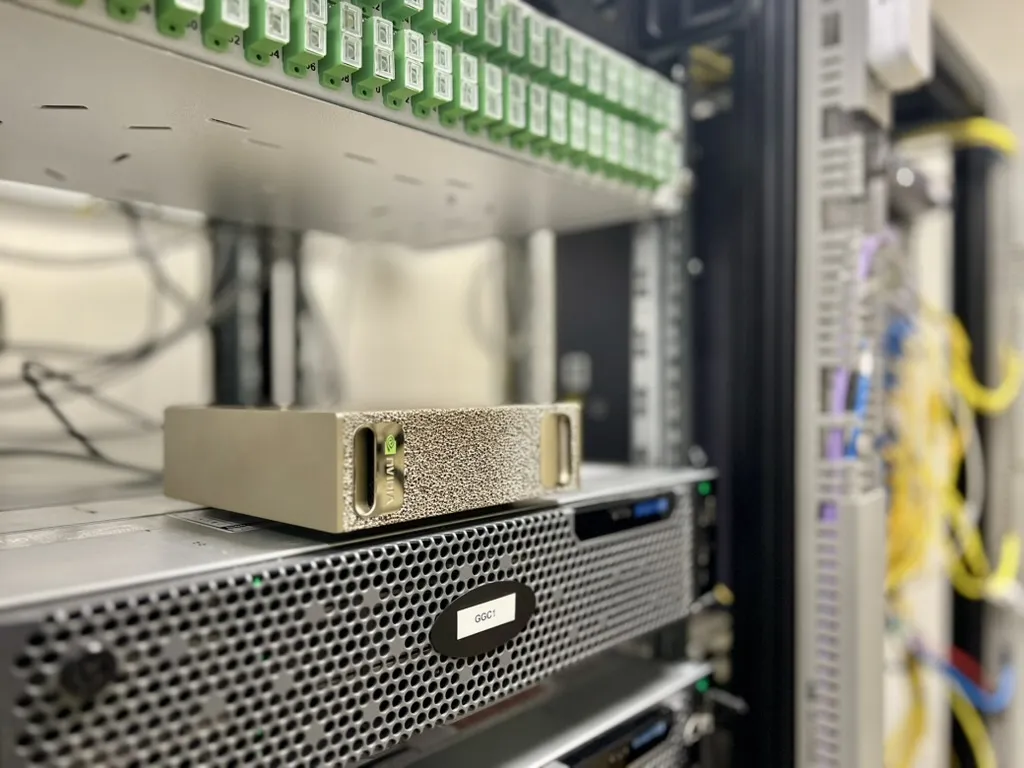
If NIM repeatedly crashes with error decoding response body, the problem is network speed or stability. On a 100 Mbit/s office connection my downloads kept corrupting. Two things helped in combination: moving the Spark to a server room with a 1 Gbit/s connection and adding -e NIM_SDK_USE_NATIVE_TLS=1 to the docker run command — this flag switches the TLS implementation and helps with download issues.
7. Test inference
The API is OpenAI-compatible — endpoint /v1/chat/completions:
curl -s http://localhost:8000/v1/chat/completions \
  -H "Content-Type: application/json" \
  -d '{
    "model": "meta/llama-3.1-8b-instruct",
    "messages": [{"role": "user", "content": "Hello, who are you?"}],
    "max_tokens": 128
  }'
Output
{
  "id": "chatcmpl-b41203406f00d0f2",
  "object": "chat.completion",
  "model": "meta/llama-3.1-8b-instruct",
  "choices": [{
    "message": {
      "role": "assistant",
      "content": "I'm an artificial intelligence model known as a conversational AI. I'm a computer program designed to simulate human-like conversations and answer questions to the best of my knowledge based on my training data..."
    },
    "finish_reason": "length"
  }],
  "usage": {
    "prompt_tokens": 41,
    "completion_tokens": 128,
    "total_tokens": 169
  }
}
8. Switching models
Stop the container and start a different model. Next up is Qwen3-32B — a NIM variant optimized specifically for DGX Spark:
docker stop $CONTAINER_NAME

docker run -d \
  --name=qwen3-32b \
  --gpus all \
  --shm-size=16g \
  -e NGC_API_KEY \
  -e NIM_SDK_USE_NATIVE_TLS=1 \
  -v ~/.cache/nim:/opt/nim/.cache \
  -p 8000:8000 \
  nvcr.io/nim/qwen/qwen3-32b-dgx-spark:1.1.0-variant
Watch the cache path: Llama NIM (generic) uses
/opt/nim/.nim-cache, DGX Spark variants (Qwen3-32B) use/opt/nim/.cache. Adjust the bind mount accordingly.
What’s next?
The Spark is running, NIM is serving the first model. But I’m already thinking ahead — what to actually do with it?
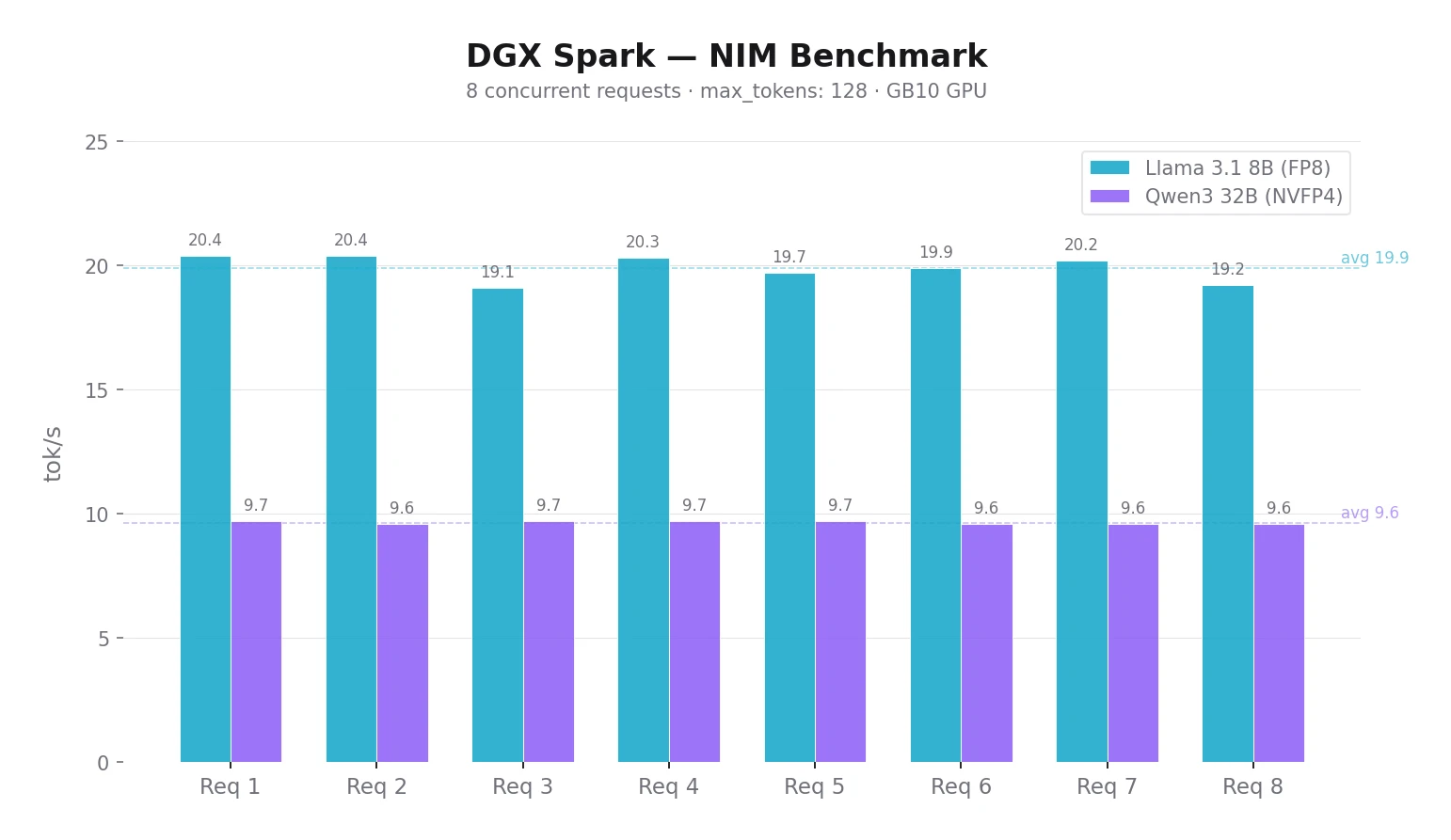
Multiple users at once. NIM handles batching of concurrent requests automatically — no configuration needed. For 2–4 colleagues with the 8B model, just share the URL. In my benchmark, Llama 3.1 8B via NIM handled 8 concurrent requests at ~20 tok/s each.
I prepared scripts for verification and benchmarking — just create a .env with your Spark’s URL and run:
Healthcheck — verifies NIM is running and responds with a single request:
$ ./healthcheck.sh
Testing NIM at http://spark-XXXX.local:8000 (model: meta/llama-3.1-8b-instruct)
---
Response:
I'm an artificial intelligence model known as a large language model (LLM).
I'm a computer program designed to understand and generate human-like text.
I can answer questions, provide information, and even engage in conversation
to the best of my abilities.
---
Tokens: prompt: 41, completion: 124, total: 165
Benchmark — concurrent requests, measures time and tok/s:
$ ./benchmark.sh
Benchmark: 8 concurrent requests
Endpoint:  http://spark-XXXX.local:8000
Model:     meta/llama-3.1-8b-instruct
---
  Request 3: 4.17s | 80 tokens | 19.1 tok/s
  Request 8: 4.20s | 81 tokens | 19.2 tok/s
  Request 5: 4.50s | 89 tokens | 19.7 tok/s
  Request 6: 4.61s | 92 tokens | 19.9 tok/s
  Request 4: 4.76s | 97 tokens | 20.3 tok/s
  Request 2: 4.80s | 98 tokens | 20.4 tok/s
  Request 7: 4.80s | 97 tokens | 20.2 tok/s
  Request 1: 4.88s | 100 tokens | 20.4 tok/s
---
Done.
With 8 concurrent requests, Llama 8B reaches ~20 tok/s, Qwen3 32B ~9.7 tok/s per request — NIM batching works. You can change the number of requests: ./benchmark.sh 16.
Download scripts: healthcheck.sh · benchmark.sh · .env.example
Open WebUI. A web interface for colleagues who don’t want to work from the terminal. NIM has an OpenAI-compatible API, so just enter the endpoint URL and it works.
Multi-node. According to NVIDIA documentation, it’s possible to link up to 4 Sparks via RoCE for larger models. I only have one for now, but it’s an interesting option for the future.
Conclusion
The DGX Spark is compact, quiet, and with 128 GB of unified RAM it fits on a desk or in a rack. Initial setup is straightforward, but keep in mind that NIM needs a stable and fast connection. On a 100 Mbit/s office line, NIM downloads kept failing — even NIM_SDK_USE_NATIVE_TLS=1 alone didn’t help. Only the combination of a faster network (1 Gbit/s) and the TLS flag resolved it.
After hooking up Open WebUI I tested both models in practice. Llama 3.1 8B at ~20 tok/s feels smooth — chatting is comfortable. Qwen3 32B at ~10 tok/s is noticeably slower for everyday chat, but the response quality is higher. For interactive use I’d recommend a model with at least 20 tok/s. Slower models make more sense for background tasks where speed doesn’t matter. More comparisons in the next post.
Key takeaways:
- Expect some initial setup. OTA update, NGC registration, license acceptance, Docker permissions. It’s not plug-and-play, but nothing insurmountable.
- Network matters. NIM downloads on a slow or unstable connection kept failing. In my case, a 1 Gbit/s link combined with
NIM_SDK_USE_NATIVE_TLS=1did the trick.
For a company that wants local LLM inference without cloud dependency, DGX Spark is a solid foundation. In the next post I plan to cover Open WebUI setup, model comparisons and real-world use cases for the team.